






3D billboards
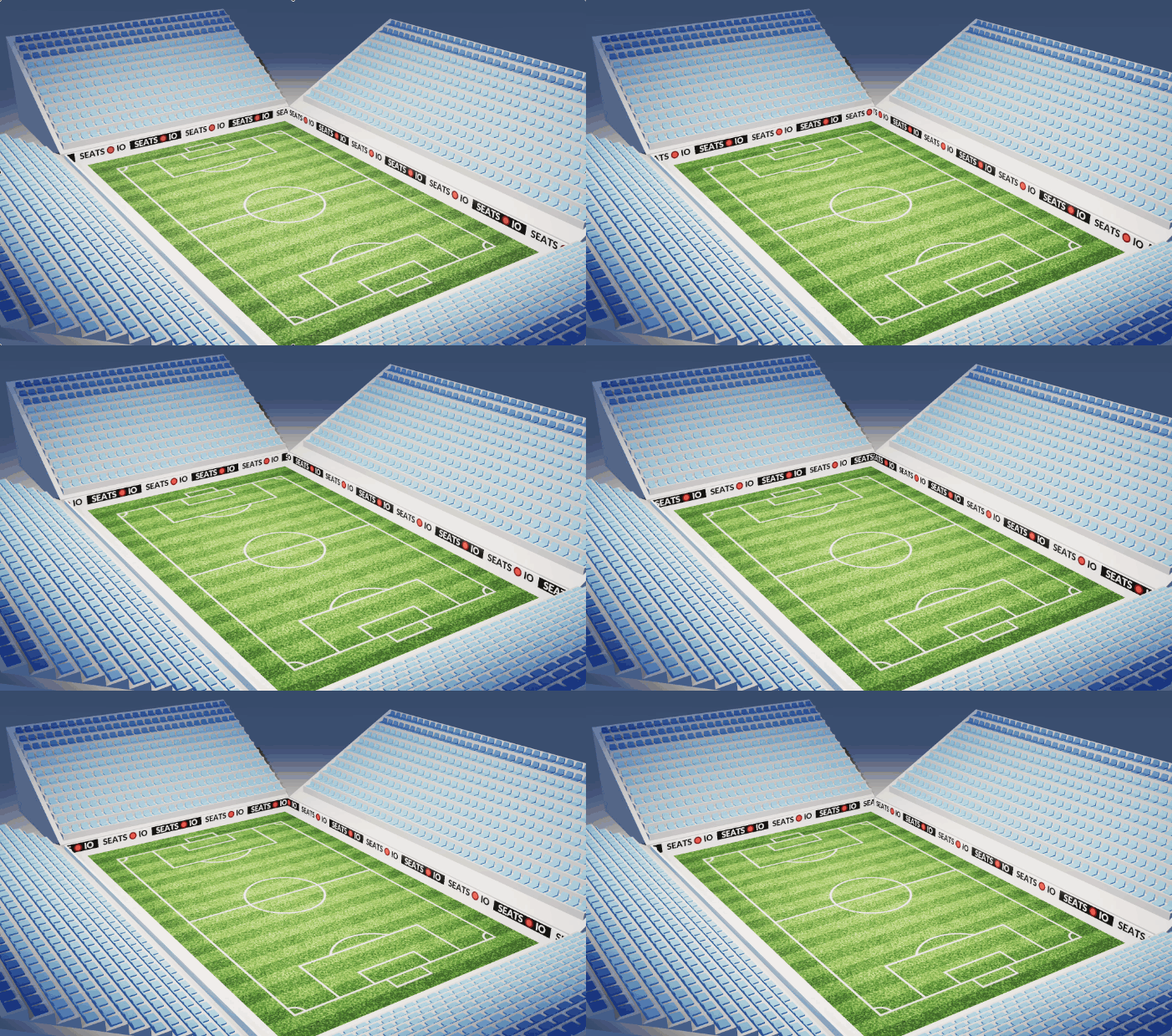
3D charts now support billboards with up to 12 scrolling images - ideal for sponsorships or advertisements. Setting these up in the designer is straightforward once you have converted your chart to 3D.
Getting started
Billboards are created with the new billboard tool, which is available after 3D tools have been enabled:

With the tool selected, draw lines of billboards until you have the placement you want. You can click the last placed point to create an open billboard shape, or close it by clicking the first placed point.
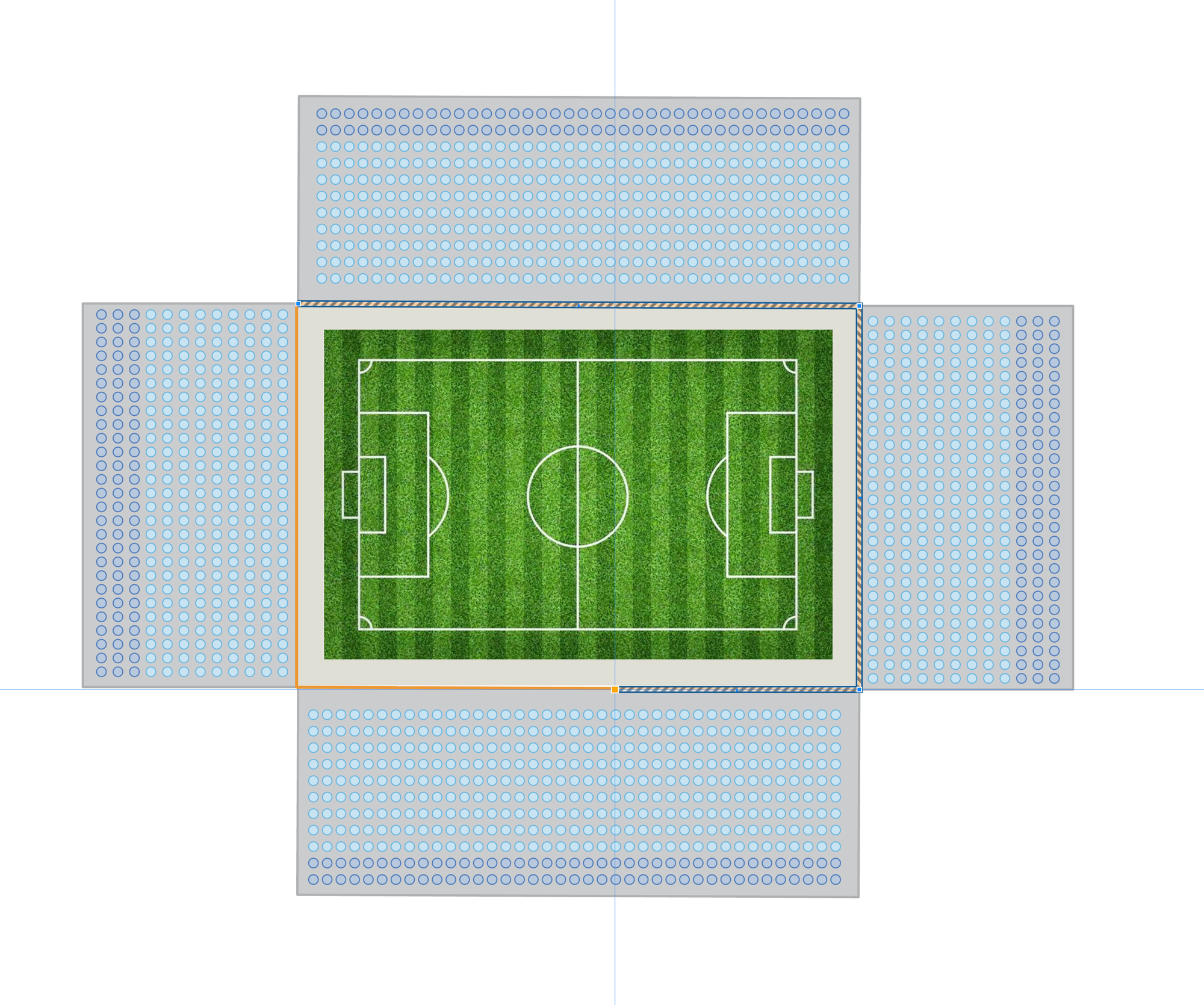
Billboards in the designer are visually distinct from other objects, and will have scrolling diagonal lines, somewhat reminiscent of a barber shop pole. The image below shows billboard drawing in progress, with segments being placed around the pitch alongside the foundations.
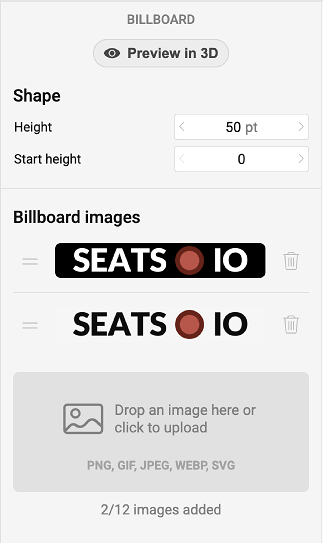
When you are done drawing, select the newly created billboard to upload the images you want to use. We recommend that you keep them 128 pixels tall, and as wide as needed. Don’t worry, if they’re taller, we’ll resize them for you.
You can select up to 12 images and arrange them in the order you want by dragging them within the list. The images will be applied to every billboard in the venue, so you have one central place to easily manage them.
And that’s all there is to it, really! You can now preview in 3D or publish your changes to see real-time, scrolling billboards in your venue.